👐 Set up lab
In this lab, we will be using Jupyter Notebooks, which is an interactive Python environment. If you are new to Jupyter Notebooks, use this guide to familiarize yourself with the environment.
- Instruqt
- GitHub Codespaces
- As part of a MongoDB Day
Instruqt is a lab platform that provides cloud-based sandboxes which come pre-configured with all the tools you need to run this lab.
The learning environment is called "CRUD Operations with JavaScript and MongoDB", don't worry, you're in the right place!
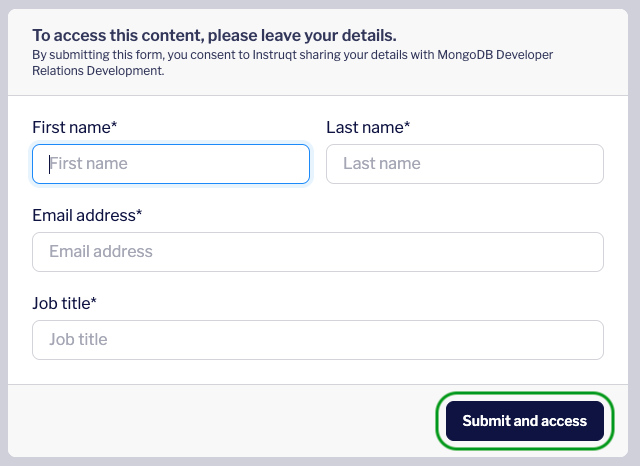
Navigate to the Instruqt lab using this link. Fill out the form that appears and click Submit and access.
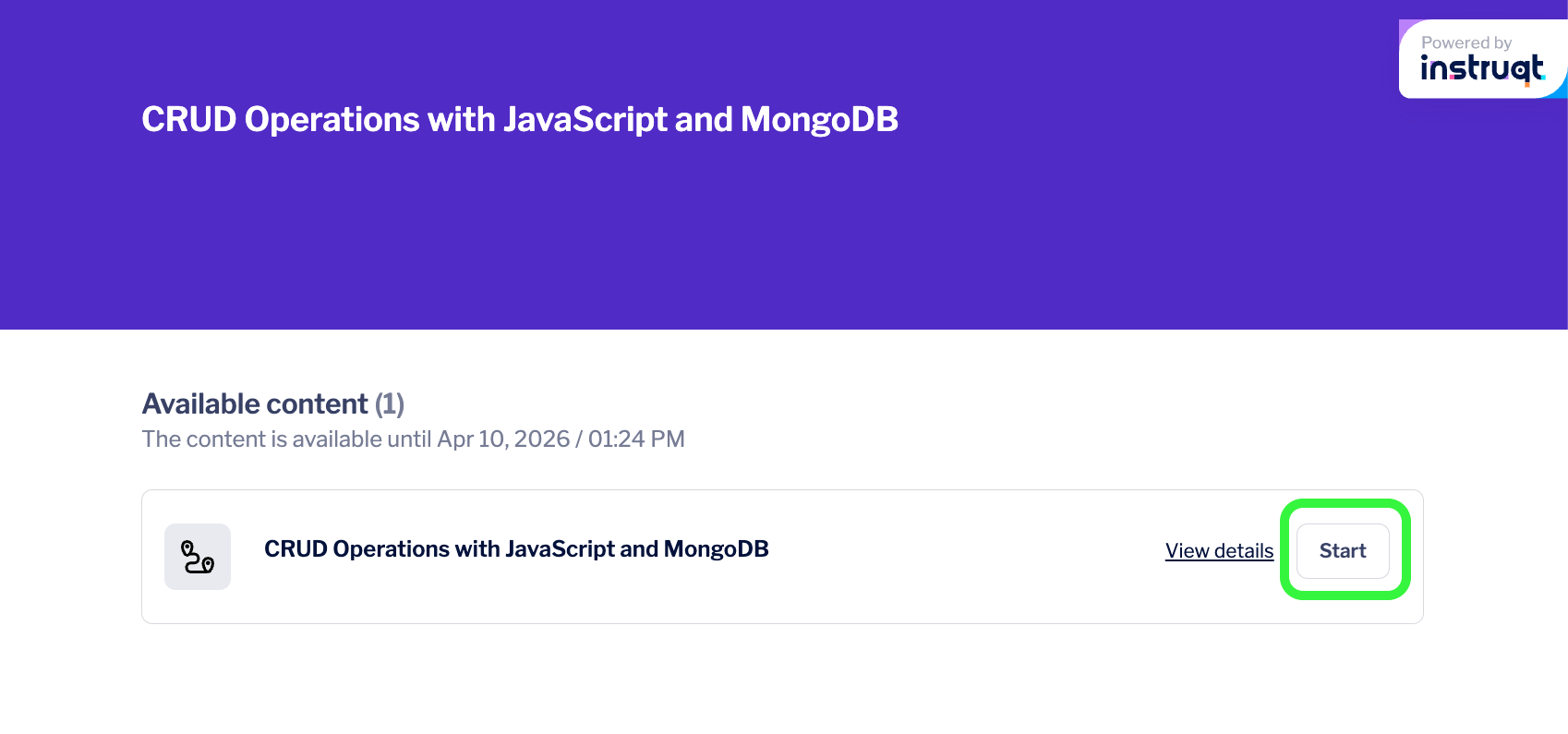
Click Start to launch the lab environment.
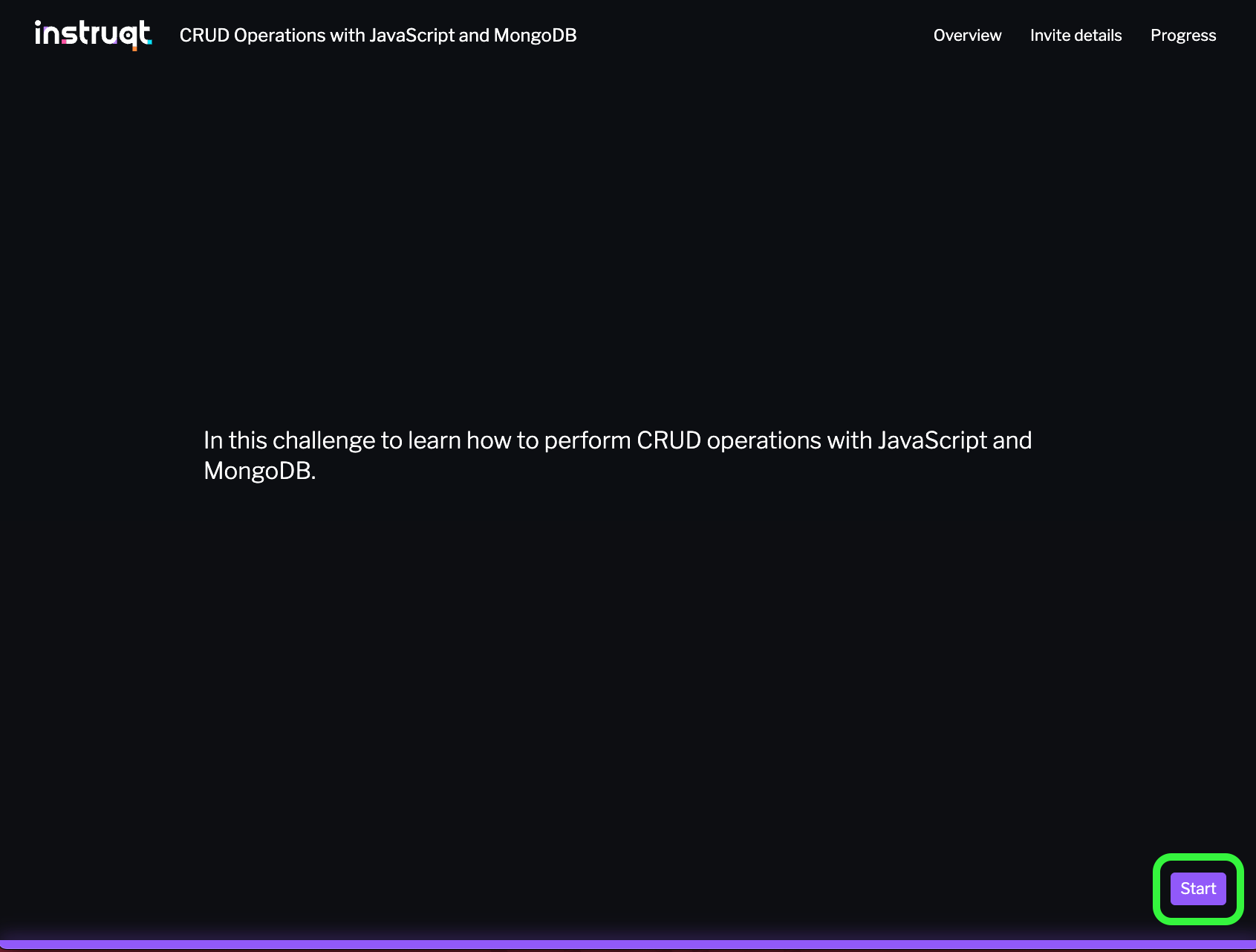
You should see a screen with a purple progress bar indicating that Instruqt is preparing a sandbox with all the required libraries for this lab and a MongoDB cluster.
Once this is done, you should see a Start button at the bottom right of the screen. Click this to enter the lab.
Connect to the MongoDB cluster
Let's first connect to the MongoDB cluster that was created for you. This will allow you to view data we import into the cluster later in the lab, directly from the VSCode IDE.
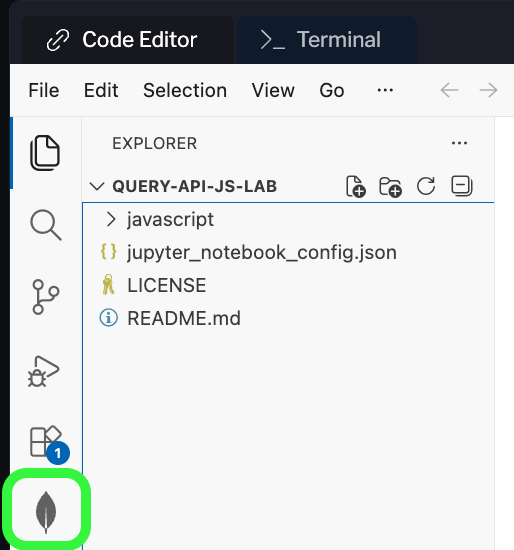
To do this, click the leaf icon in the left navigation bar of the IDE. This is MongoDB's VSCode extension.
Under Connections, click the Library DB connection. This should automatically establish a connection to the local MongoDB cluster running on port 27017.
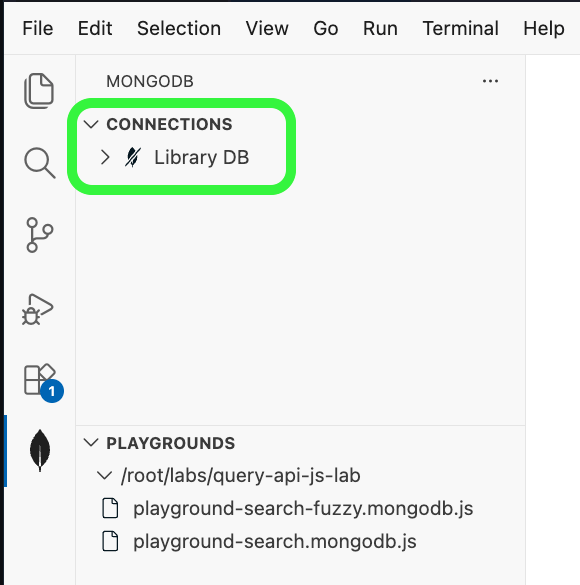
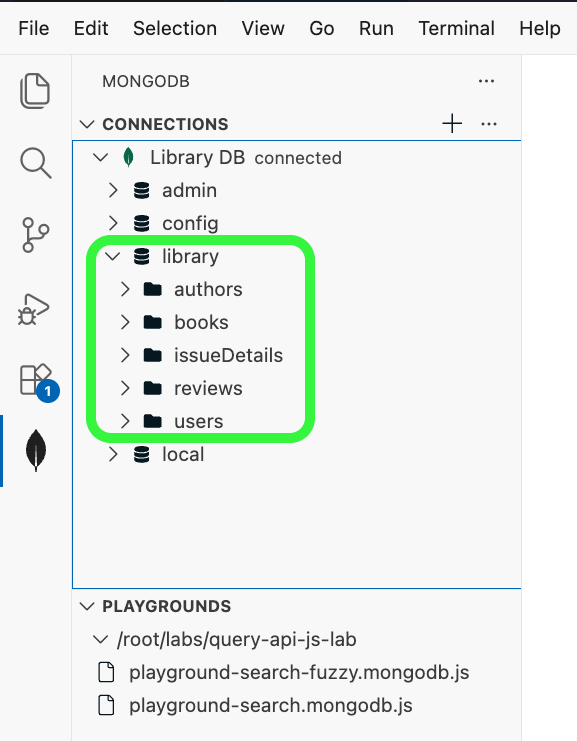
If the connection was successful, you should see a green leaf and a "connected" message appear around the Local MongoDB Atlas connection.
You will also see the default databases in the cluster appear under Connections. Any additional databases we create during the lab will also appear here.
Jupyter Notebook setup
You will be filling code in a Jupyter Notebook during this lab, so let's get set up with that next!
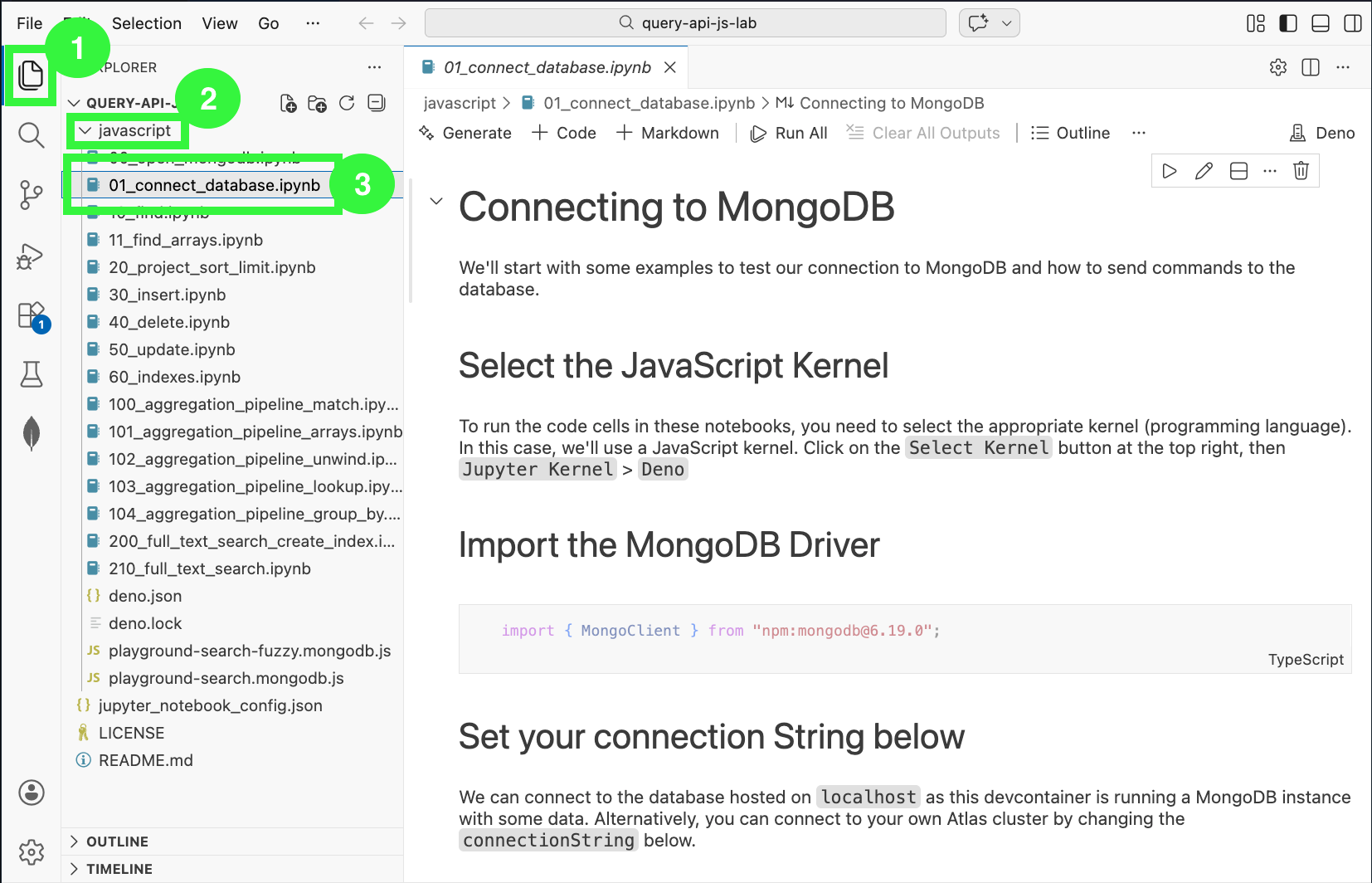
Within the sandbox, click on the files icon in the left navigation bar of the IDE. In the Explorer menu, navigate to jedee > javascript > 01_connect_database.ipynb to open the Jupyter Notebook for this lab.
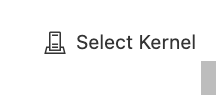
Next, select the Python interpreter by clicking Select Kernel at the top right of the IDE.
In the modal that appears, click Jupyter Kernel... and then select Deno, the JavaScript Node compatible interpreter.
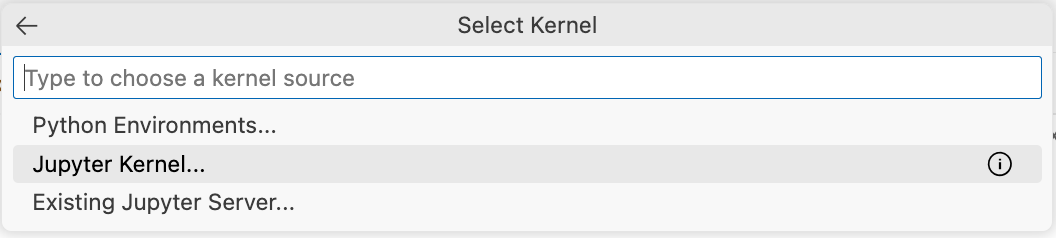

That's it! You're ready for the lab!
- Sign in to Github, and open the repository for this lab in your preferred programming language using the links below:
- Click on
Code> Click onCodespaces> Click onCreate a Codespace on Main - ⚠️ Wait for the Codespace to load completely
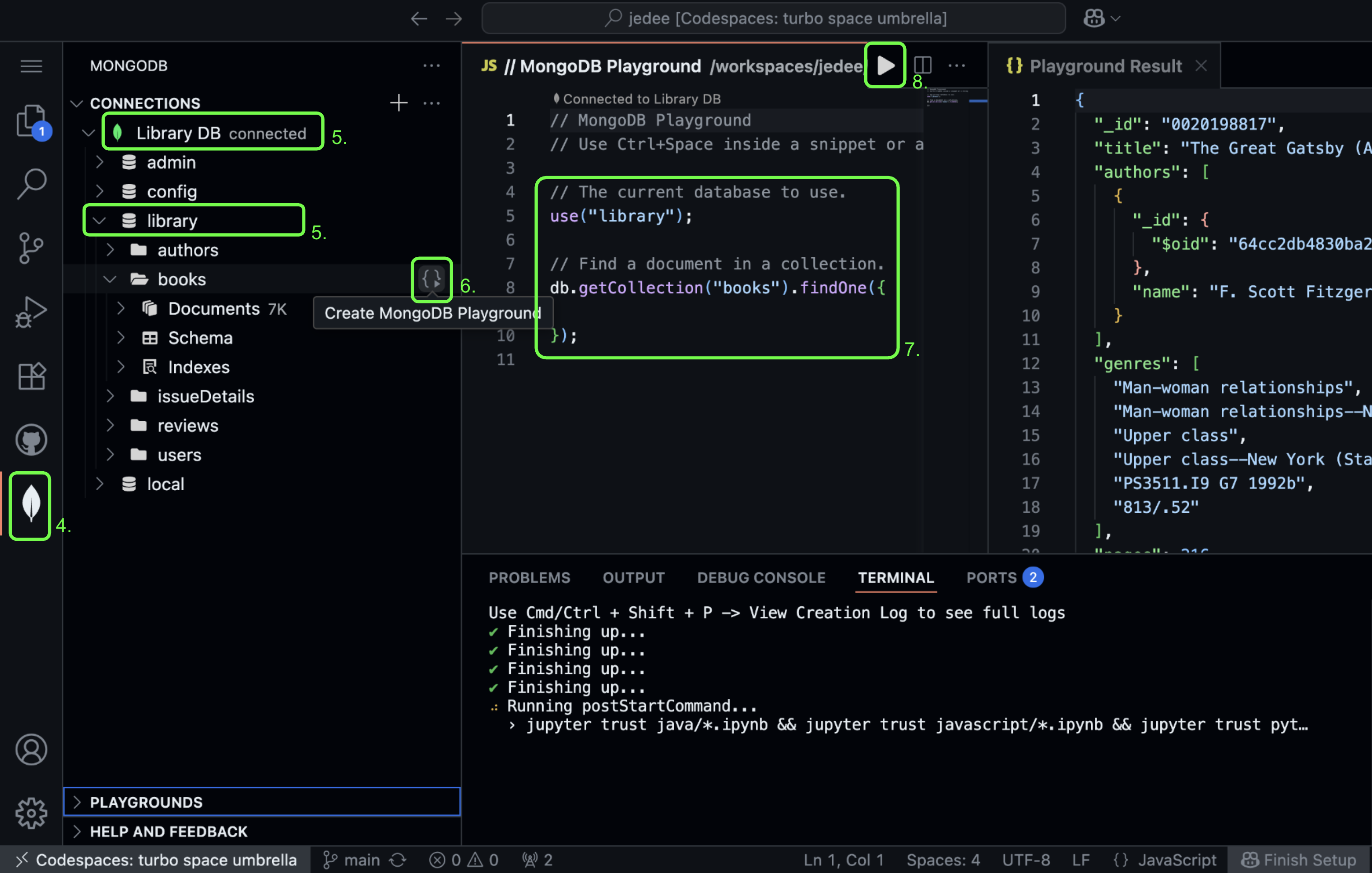
- Click on the MongoDB extension
- Click on the
Library DBin the connections and then select thelibrarydatabase - Open a playground into the
bookscollection - Write MongoDB commands in the playground
- Run MongoDB commands by clicking on the play icon ▶️ at the top right corner
- Practice by trying out all the examples and exercises mentioned in the next 2 sections: CRUD ops and Aggregation Pipelines.
To follow along, you'll need:
- A MongoDB Atlas account.
- Test data. In this case, this is
book,author, andreviewdata for a library management system.
👐 To get this data set, open the intro lab and follow it to get your database ready. (Only do sections MongoDB Atlas and Importing Data. This should take you 10 to 15 minutes.)
Return here when finished!